
Google Merchant Center Errors That Quietly Cost You Sales
Find and fix the Google Merchant Center errors that hide products from Shopping ads and free listings, and why fixes need time before Black Friday.
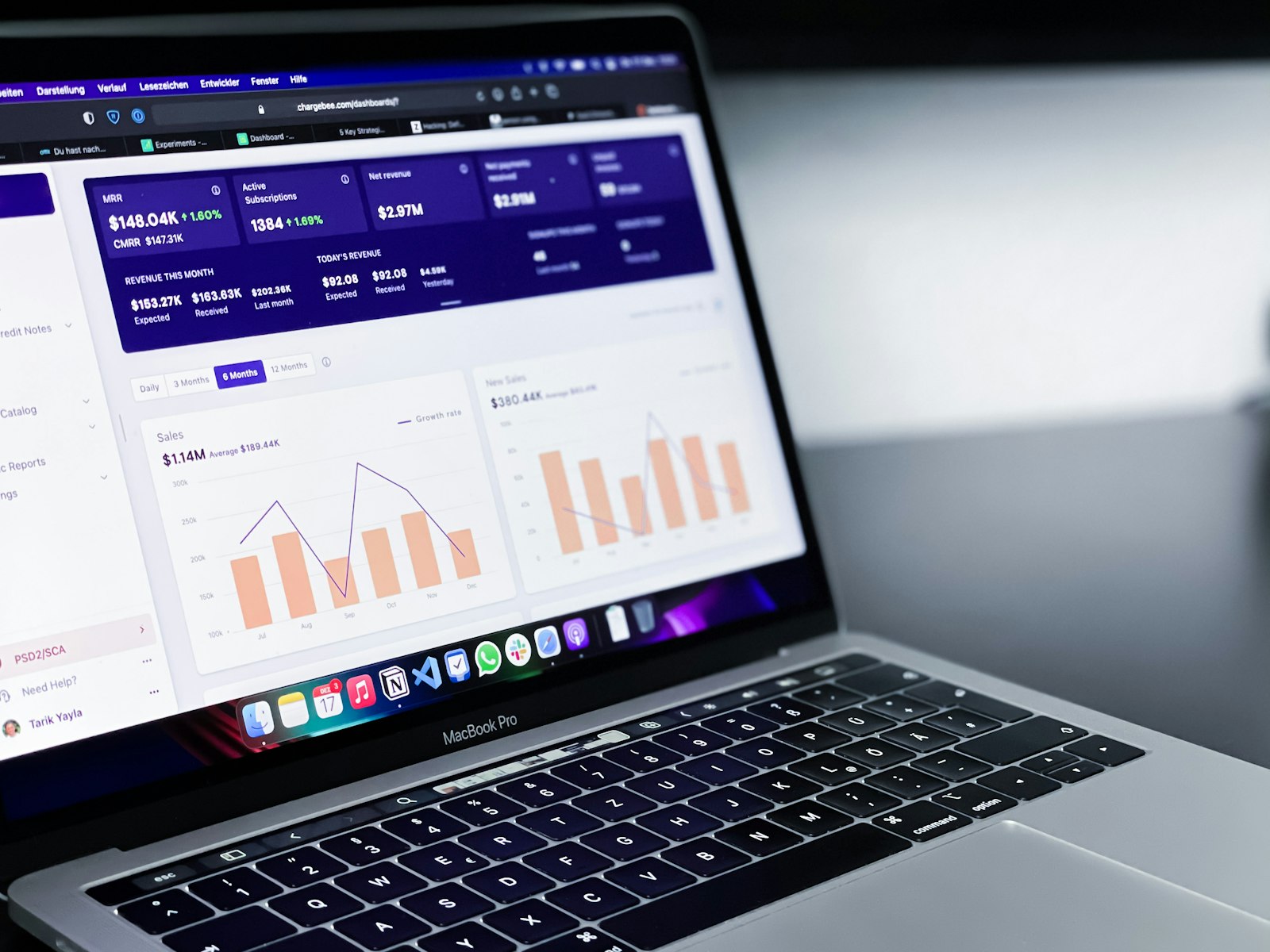
A disapproved product doesn’t break your website. The page still loads and the add-to-cart button still works. The product simply stops appearing in Shopping ads and free listings, and unless someone is watching Merchant Center, the first sign is a quiet dip in Shopping traffic at the busiest time of year.
That’s why Google Merchant Center errors deserve an hour this week. Black Friday is on November 27, 2026, and Google says a requested review may take up to 7 business days, so a problem spotted the week before the sale may not clear in time. Below is where to look and what to do about the issues we run into most often when we audit a store’s feed.
Where to find Google Merchant Center errors in the current interface
If you last used Merchant Center a couple of years ago, some names have changed. Feeds are now data sources, and destinations are now marketing methods.
Product problems live on the Products page, under the Needs attention tab. Summary cards at the top show the biggest issues, with the full list of affected products below, which you can filter by issue type and download. The prioritized fixes toggle narrows the list to issues Google expects to have a medium or high impact on performance.
Account-level issues appear in a banner at the top of the account. Read those first, because they can affect every product at once.
Every issue is either a warning or a disapproval. Products with warnings keep showing. Disapproved products stop showing until the problem is fixed and Google has checked again.
Product data issues
Price and availability mismatches
Google compares the price and availability in your product data with what its crawler finds on the product page, and a mismatch can get the product disapproved. Google’s guide to fixing mismatched prices lists the usual causes, and most get worse during a sale:
- The site changes price at midnight, but the data source only updates once a day.
- The page’s structured data still carries the regular price while the page shows the sale price.
- Googlebot sees a different price from customers because of caching, geolocation, A/B tests or a price loaded by JavaScript after the page renders.
- The sale price effective date is wrong or in the wrong time zone.
- The currency in your data doesn’t match the page.
Use the sale price attribute with effective dates instead of overwriting the regular price. Fetch your data source more often during sale week and clear the page cache whenever prices change. Then check that the structured data matches the visible price.
Merchant Center’s automations, on the Automations tab of the Products page and on by default, can update price, sale price, availability and condition from your pages’ structured data. Google is clear they aren’t a replacement for keeping your data current, and they may not work for products whose price or availability changes more than once a day. After a fix, Googlebot re-crawls disapproved products over the following hours or days.
Missing or wrong product identifiers
Google recommends a GTIN for every product that has one assigned by the manufacturer. Own-brand and handmade products often don’t have one, and in that case you shouldn’t submit a GTIN at all. Provide the brand and MPN instead. Google is explicit that you should never guess or make one up.
The mistakes we see most are a SKU pasted into the GTIN field and one GTIN reused across every variant. Check the brand field too, since stores sometimes enter their own name for products another company makes.

Image problems
Google’s image rules exclude promotional overlays and text, watermarks, added logos, borders and placeholder images. Images need to be at least 500 x 500 pixels, and larger is recommended. The holiday risk is a theme or app that burns a “Sale” badge into product images, or a designer adding a festive frame to every photo. Keep promotional graphics in your site banners and emails, and keep product images clean.

Titles and descriptions
These cause fewer outright disapprovals, but they affect which searches your products match. Titles can run to 150 characters, though Google notes people usually notice only the first 70 or fewer, so put the important details first. Leave out promotional text such as prices or “free shipping”, and avoid all caps. Placeholder text copied from a theme or supplier template causes trouble here and in the account checks below.
Website and settings issues
Product pages Google can’t reach
If Google can’t load the product page, the product is disapproved. Google’s list of causes includes 404 errors, more than two redirects, server errors, an unreachable robots.txt file and DNS problems. In November we’d add maintenance mode left on after an update, and firewall or bot-protection rules that block Google’s crawlers along with the bad traffic. Test affected URLs with the URL Inspection tool in Search Console. Our Black Friday website checklist covers the site side in more detail.
Shipping and returns settings
These sit under Shipping and returns in the Merchant Center menu. Google asks for return policies to be consistent between Merchant Center and your website, including the footer, returns page and any banners, and for them to be readable without logging in. If you extend the returns window for gifts or change your free-shipping threshold for the sale, update Merchant Center on the same day you change the site.
Account-level issues: misrepresentation and policy
This is where the stakes are highest. Google’s misrepresentation policy covers things like false business identity or contact details and hiding the full cost, taxes and fees included. It also rules out promoting offers that aren’t actually available. Google’s guidance on running a fully functional store asks for contact information and policy pages, and no placeholder images, template text or broken links.
A quick self-check before the sale:
- Contact details on the site are real and match what’s in your Merchant Center account.
- Returns and shipping pages are linked from every page, usually in the footer.
- No demo products, “Lorem ipsum” text or theme placeholder images remain anywhere.
- Every promotion mentioned in ads or banners is live and works at checkout.
Product-level policy disapprovals are different. Sometimes the product isn’t allowed in Shopping at all, and no edit will fix it, so read the issue detail before changing anything.
How reviews work, and why timing matters
Once a fix is live, open the issue from the Needs attention tab, choose “I fixed the issue” (or “I disagree with the issue”) and then “Request review”. Google’s help page says a review may take up to 7 business days and approved products become eligible to show within 24 hours. You may get only one chance to disagree, and after unsuccessful attempts the review button is greyed out for a cool-down period that can lengthen each time. For account-level warnings, Google mentions a warning period of 7 or 28 days with one courtesy review.
So don’t request a review until you’ve confirmed the fix on the live site. Counting 7 business days back from Black Friday puts the last reasonably safe day for a request at around November 17, and earlier is better.
For quick reference, here’s where each fix usually lives:
| Issue | Where the fix usually lives |
|---|---|
| Price or availability mismatch | Data source schedule, structured data, page caching |
| Missing or wrong GTIN, brand or MPN | Product data in your store or feed app |
| Image overlays or placeholders | Product images in your store |
| Product page unavailable | Website, hosting, firewall or robots.txt |
| Shipping and returns | Merchant Center settings and your policy pages |
| Misrepresentation | Website content and your Merchant Center business details |
If you’re deciding how much of the season’s budget belongs in Shopping at all, our comparison of SEO and Google Ads covers the trade-offs. And if the Needs attention list is longer than you have time for, our Google Ads team can work through the feed with you before the sale.
Running a Shopify store? Most Merchant Center errors trace back to product data or theme settings, which our Shopify developers can fix at the source so they don’t come back with the next feed update.
FAQ

Written by
Keyur Patel is co-founder and director of NXS Infotech, where he leads client partnerships. Since 2016 he has helped US e-commerce brands and agencies plan and grow their stores, from Shopify builds and marketplace management to SEO, email and paid ads. He has kept the agency Top Rated Plus on Upwork with a 100% Job Success Score.
Need Help With Your Website?
Book a free 20-minute call. We’ll review your site and tell you honestly what to fix first.
Free 20-minute call
Talk to a Founder About Your Store or Site
No sales pitch. You leave with a short list of what to fix first, even if you never hire us.