
How to Keep a WooCommerce Store Fast Through Holiday Traffic
How to speed up WooCommerce for holiday traffic: caching exclusions, HPOS, object caching, Action Scheduler, load testing and monitoring during the sale.

The homepage is rarely what slows down first. When a WooCommerce store struggles in late November, it’s usually the cart and checkout, along with the admin order screens, because those are the pages a cache can’t help with. Every shopper with something in their basket asks the server to do real work on every click.
So if you want to speed up WooCommerce before the holidays, most of the job is making the uncached parts lighter and making sure everything else really is cached. This guide sticks to WooCommerce itself. If you’re still weighing up your host, start with our post on how fast web hosting can boost SEO and conversions. For the wider pre-sale to-do list, see the Black Friday website checklist.
Do everything below on a staging copy first, and aim to finish by mid-November so changes have time to settle before Black Friday on November 27.
Start by finding where the time goes
Get a baseline first. In a private browser window, time a category page, adding a product to the cart and opening the checkout. Do the same with the admin orders list, and write the numbers down.
Then install the free Query Monitor plugin on staging. It flags slow and duplicate database queries and tells you which plugin or theme is responsible. On slow stores, it’s common for most of the slow queries to trace back to one or two plugins.
How to speed up WooCommerce page caching without breaking the cart
Full-page caching stores a finished copy of a page and serves it without running WordPress at all. For product and category pages, which look the same for every visitor, it’s the first thing we set up. For cart, checkout and account pages it’s a bug waiting to happen, because those pages show one customer’s own data.
WooCommerce’s guide to configuring caching plugins says to exclude these from the page cache:
- Pages: Cart, Checkout and My Account.
- Cookies:
woocommerce_cart_hash,woocommerce_items_in_cart,wp_woocommerce_session_,woocommerce_recently_viewedandstore_notice[notice id].
The cookie rules matter as much as the page rules. Once a shopper has something in the cart, those cookies tell the cache to step aside so they see their own cart rather than a stored copy.
Most WooCommerce-aware caching plugins add these rules for you, but a plugin only controls its own cache. If your host caches at server level, or a CDN caches full pages, each layer needs the same exclusions. A mistake we see a lot is a store where the plugin is set up correctly and the CDN in front of it isn’t.
To test, add something to the cart in a private window and browse a few pages; the cart count should stay right everywhere. Then open a second private window and check its cart is empty.
Check you’re on High-Performance Order Storage
Older WooCommerce stores keep orders in the same database tables WordPress uses for posts and pages. High-Performance Order Storage (HPOS) moves orders into dedicated tables with their own indexes, which WooCommerce’s documentation says means fewer read and write operations. That helps where orders are created and managed: checkout and the admin order screens.
HPOS has been enabled by default for new installations since WooCommerce 8.2, released in October 2023. If your store was set up before then, it may still use the old storage. Check under WooCommerce → Settings → Advanced → Features. If HPOS can’t be switched on, WooCommerce lists the incompatible plugins behind the “View and manage” link.
If you’re not on HPOS yet, don’t switch in November. Changing how orders are stored a few weeks before your busiest period adds risk you don’t need. Test the switch on staging in January and move then.

Add a persistent object cache
Every time WordPress builds a page, it looks up settings, products and other data from the database, then forgets the results once the page is done. A persistent object cache, usually Redis or Memcached, keeps them in memory between requests so the next page view doesn’t have to ask the database again.
This helps most where page caching can’t: logged-in customers, the cart, the checkout and the admin. On a small, quiet store you may not notice much. WordPress’s Site Health screen (Tools → Site Health → Status) recommends a persistent object cache once a site passes certain size thresholds, which is a reasonable prompt to look into it.
Redis has to run on the server, so this starts as a conversation with your host rather than a plugin install. Test it on staging, and make sure whoever deploys changes knows to flush the object cache afterwards.
Keep Action Scheduler from piling up
WooCommerce and many of its extensions hand background work to a job queue called Action Scheduler. Subscription renewals are the best-known example, and plenty of plugins that sync orders or customers with outside services use it too. You’ll find the queue under WooCommerce → Status → Scheduled Actions.
What to look for:
- Past-due pending actions. Action Scheduler’s own FAQ says some are normal, but several more than a day old suggest something is wrong with the site.
- Failed actions. Check which hook they belong to. A long run of failures from one hook usually points to a broken plugin, or one that was deactivated with its jobs left behind.
- A very large pending queue. Background work is falling behind, and it competes with shoppers for the same server.
By default, WordPress runs scheduled jobs through WP-Cron, which only fires when someone loads a page. Pages served from a full-page cache don’t load WordPress, so they don’t trigger it. The more reliable setup, described in WordPress’s developer documentation, is to switch off the visit-based trigger in wp-config.php and have the server’s own scheduler run WP-Cron at fixed intervals. That’s a job for your developer or host.
Cart fragments and other AJAX requests
The classic WooCommerce mini-cart keeps its item count current using cart fragments, a script that asks the server for the latest cart contents. Those requests can’t be cached, and on a busy store they add up.
Since WooCommerce 7.8, the script only loads when the classic Mini-Cart widget is on the page. Themes and plugins can still load it, though, and some themes build the widget into their header. WooCommerce’s developer blog recommends the Mini-Cart block instead, which doesn’t use cart fragments at all.
To check, open a product page with your browser’s developer tools on the Network tab and filter for get_refreshed_fragments. If it fires on every page, ask your developer about the Mini-Cart block.
Filter for admin-ajax.php too. Live search, chat widgets and some tracking plugins send requests to it, and each one loads WordPress in full. A request every few seconds from a plugin you barely use is worth removing before the sale.
Heavy plugins, search and filters
Layered product filters and search plugins are some of the most demanding features on a WooCommerce store. Each filter click can run a complex query across products, attributes and stock, often uncached. If Query Monitor flagged slow queries earlier, check whether they came from here.
- Turn on any caching or indexing options in the filter or search plugin.
- Offer filters for the attributes shoppers actually use, not every attribute you have.
- If two plugins do overlapping jobs, keep one.
- On staging, deactivate plugins you won’t need during the sale and measure again.
One rule we stick to: no new plugins in the weeks before Black Friday.
Product images
Images don’t add database load, but they’re usually the heaviest part of a product or category page.
- Resize photos to the largest size your theme displays before uploading, and compress them.
- Use a modern format such as WebP where your setup supports it.
- Don’t lazy-load the main product image at the top of the page. Lazy loading is for images further down.
- Watch the holiday banners. A full-width promo graphic added in a hurry is often the heaviest file on the homepage.
Database housekeeping
Stores collect clutter over the years, such as expired temporary data (called transients) and orphaned product variations. Some housekeeping is worth doing now, after a fresh backup.
WooCommerce → Status → Tools covers most of it, with buttons for clearing expired transients and deleting orphaned variations. If your developer prefers the command line, WP-CLI clears expired transients in one line:
wp transient delete --expiredTwo cautions. The Clear customer sessions tool deletes active session data, carts included, so never run it while shoppers are on the site. And back up the database before using any of these tools; WooCommerce’s documentation says the same about its database update tool.
Put a CDN in front of static files
A content delivery network serves static files like images and scripts from servers closer to each shopper, taking that load off yours. The hosting post linked above covers CDNs in more depth. The WooCommerce point is this: if your CDN caches whole pages, it needs the same cart, checkout and account exclusions as your caching plugin.
Test under load on staging
The only way to know how the store behaves with lots of shoppers at once is to try it. Put a staging copy on a server as close to live as you can get, then simulate shoppers with a load-testing tool such as the open-source Grafana k6.
- Script real journeys: category, product, add to cart, checkout. A test that only hits the homepage mostly measures your page cache.
- Use your payment gateway’s test mode for checkout steps.
- Ramp up gradually and note where response times climb or errors appear.
- Watch the server too: CPU, memory, PHP workers and the error log.
Don’t load-test the live site without agreeing it with your host first. To their monitoring, a sudden flood of traffic can look like an attack.
Monitor the store during the sale
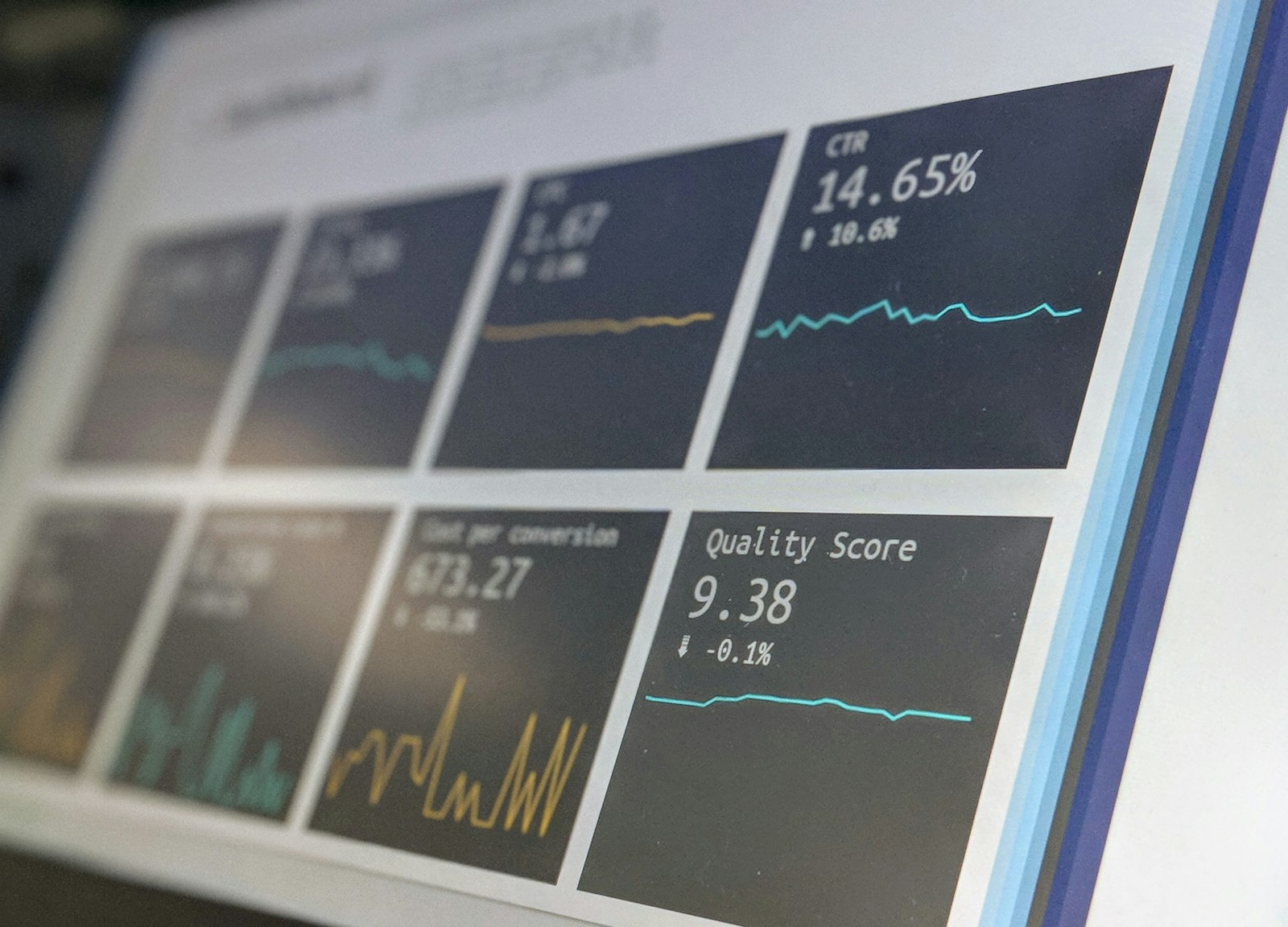
Set up uptime monitoring that checks more than the homepage. A cached homepage can keep loading while checkout is broken, so also monitor a page that’s built fresh, such as the cart. Send alerts by text or app notification to someone who’ll be awake.
During the sale, keep an eye on:
- WooCommerce → Status → Logs, especially the fatal-errors log.
- Scheduled Actions, for a growing pile of pending or failed jobs.
- Order emails and payment notifications, to confirm they’re still arriving.
Finally, agree in advance who’s allowed to make changes during the sale and how to reach your host quickly. A slow store gets worse fast when two people try different fixes at once. If you’d like a second pair of eyes on any of this before the rush, it’s the kind of review our speed and performance team does.
If your store needs deeper fixes, our WooCommerce development team can handle code-level work, and a WordPress maintenance plan keeps updates, backups and speed checks running after the holidays.
FAQ

Written by
Keyur Patel is co-founder and director of NXS Infotech, where he leads client partnerships. Since 2016 he has helped US e-commerce brands and agencies plan and grow their stores, from Shopify builds and marketplace management to SEO, email and paid ads. He has kept the agency Top Rated Plus on Upwork with a 100% Job Success Score.
Need Help With Your Website?
Book a free 20-minute call. We’ll review your site and tell you honestly what to fix first.
Free 20-minute call
Talk to a Founder About Your Store or Site
No sales pitch. You leave with a short list of what to fix first, even if you never hire us.